
Hey, My name is Godstime, Welcome to First Guide 247 WordPress website design training path. This blog guide will cover extensive training for WordPress website design from scratch. You don’t need any prior knowledge to understand what I will be teaching you on this guide.
So without any delay, let’s begin.
What are the things you need to build a WordPress website
When you visit a website via your device browsers e.g your Chrome or Safari apps. The website does not magically appear on your browser. There are things or tools that make it possible to access the website.
For you to understand how to build a website you need to know the components that makes a website available over the internet.
Things you need to know before building a WordPress Website
You need to read the guides below first, if you don’t have any idea about web development before:
- Introduction to the Web
- What is a domain name and domain extension
- Webserver and Web hosting
- What is a Web hosting provider
Read the guides above first, before continuing with this one. But I will give you a quick summary of this guides.
First what is the web?. The web is a system that allows us to access information over the internet. The www that you see on website addresses stands for World-Wide-Web.
A domain name is the human readable website address e.g “www.firstguide247”. While a domain extension is the last part of a website address like the .com, .org or the .net e.g “www.firstguide247.com”.
What is a web server, web hosting and web hosting providers
A webserver is where everything that makes your website properly are stored including the images, texts and video on your website. Web hosting is the service that helps your website to be accessible by everyone over the internet via their browsers.
While web hosting providers are the companies that sells you the domain name and the webserver to store your website files. They also provide the web hosting service that makes your website available and accessible by everyone.
The web hosting provider I recommend to get everything you need before you start building your website is Hostinger.
Read this guide on how to buy everything from Hostinger: How to Buy a Domain Name and Web Hosting from Hostinger.
What is WordPress and Elementor
WordPress is a CMS software, CMS stands for content management system. It enables users to build websites and publish contents. WordPress powers more than 40% available on the internet.
There are two types of WordPress. We have WordPress.org which is the open source (free version) while the WordPress.com (paid version). We will be using the free version of WordPress in this guide.
While Elementor is the best selling website/theme builder plugin on WordPress. A plugin is a software you can install on your WordPress Website to add extra functionality to it.
How to Install WordPress.org on Hostinger
After you have bought your domain and web hosting from hostinger. Let’s now install WordPress.org on our web server.
Step 1: Login into your hostinger dashboard called hPanel
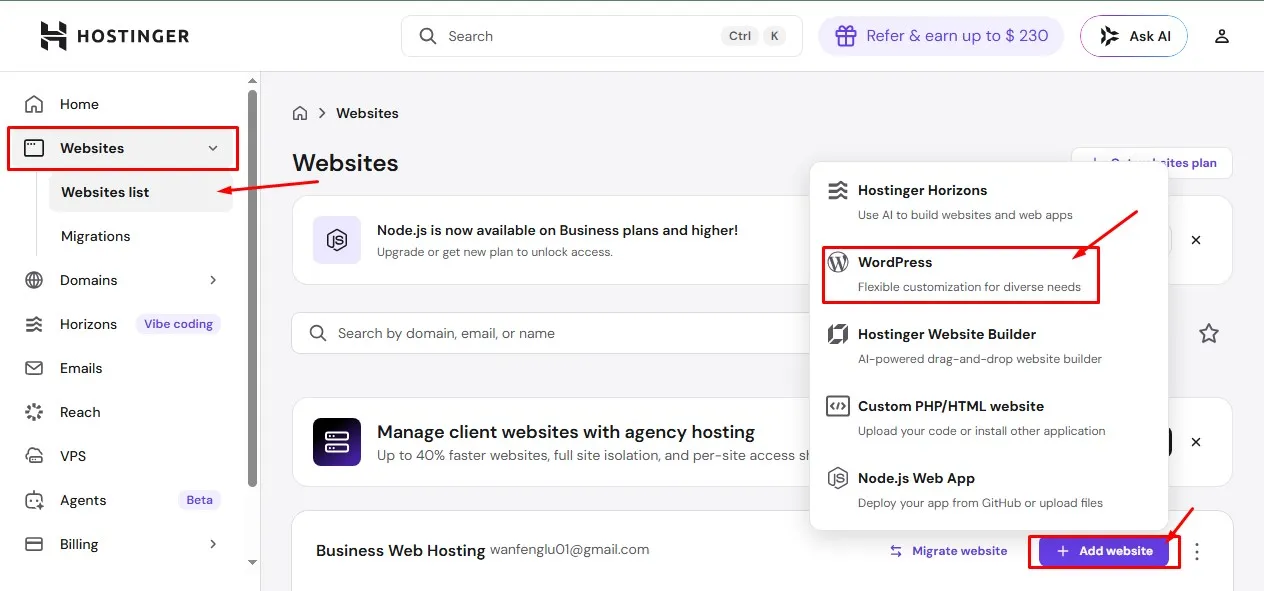
After you login into your hPanel. On the left hand side go to the website then you will see websites list. When you click it a page will be open where you see the add website button then you click it.
When you have clicked the add website button, a pop up will appear. There you will see WordPress click it. It will take you to the WordPress Installation page.
Step 2: Create your login details for your WordPress account
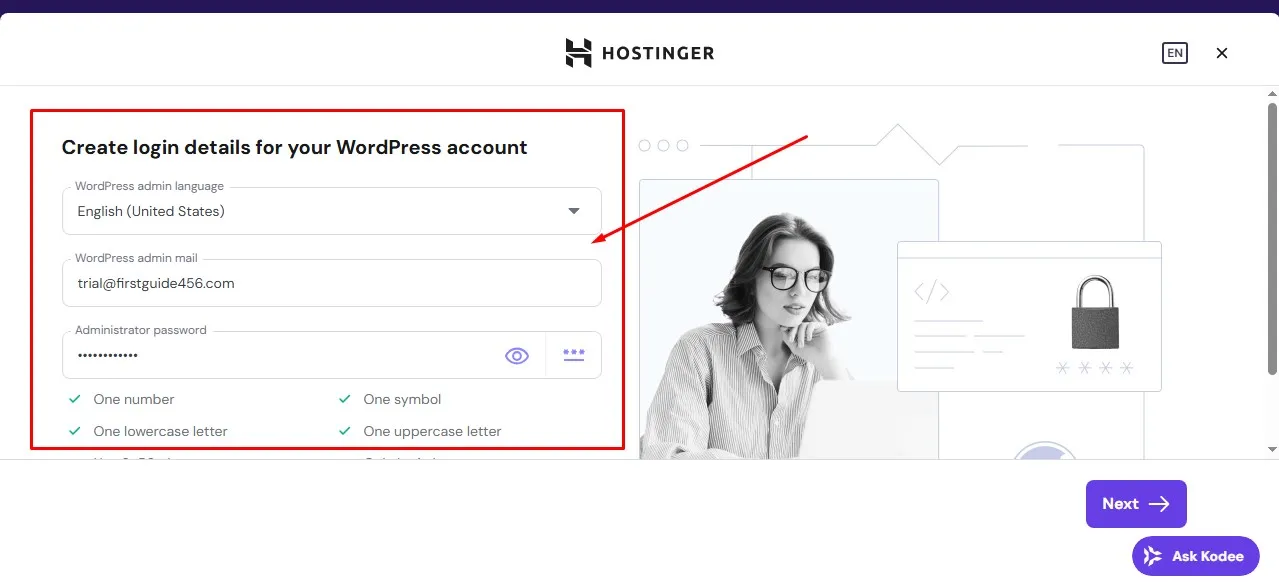
On the WordPress Installation page. The first thing you see is creating the login credentials you need for your WordPress account. Ensure you keep all the credentials safe. Because you will need them when you want to login into your WordPress dashboard directly without going through hPanel.
After filling the details you click the next button on the bottom right.
Step 3: Select the domain you want to install the WordPress
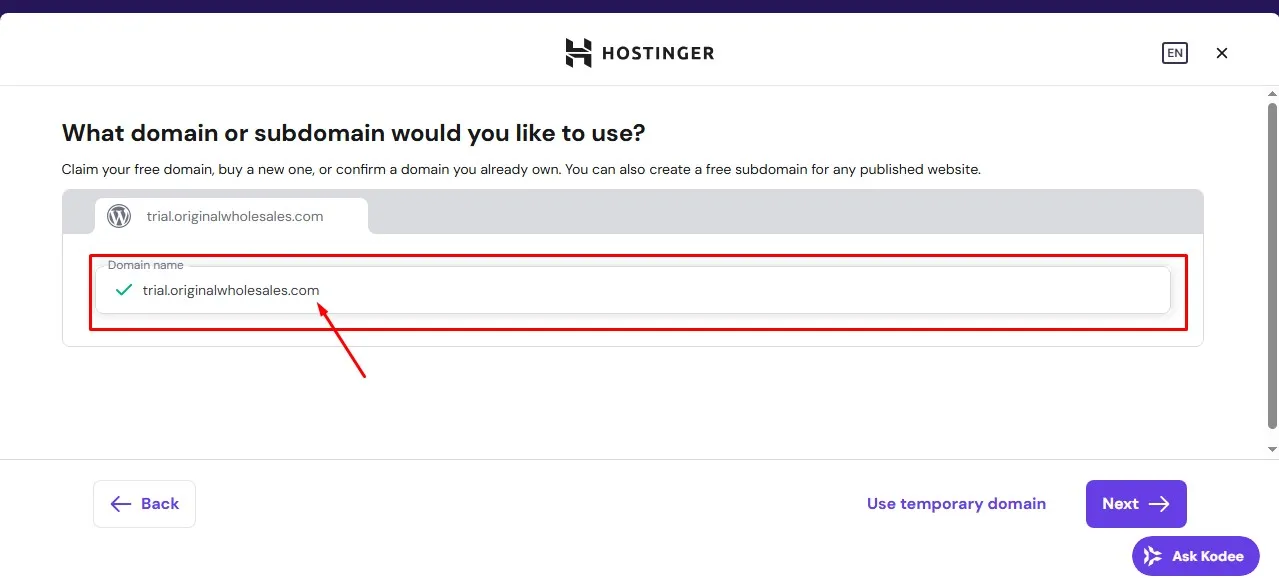
On this page select the domain you want to install the WordPress on, if you have multiple domains. But most times Hostinger will just put the domain you want especially if it’s the only available.
After you have selected the right domain. Click the Next button on the bottom right.
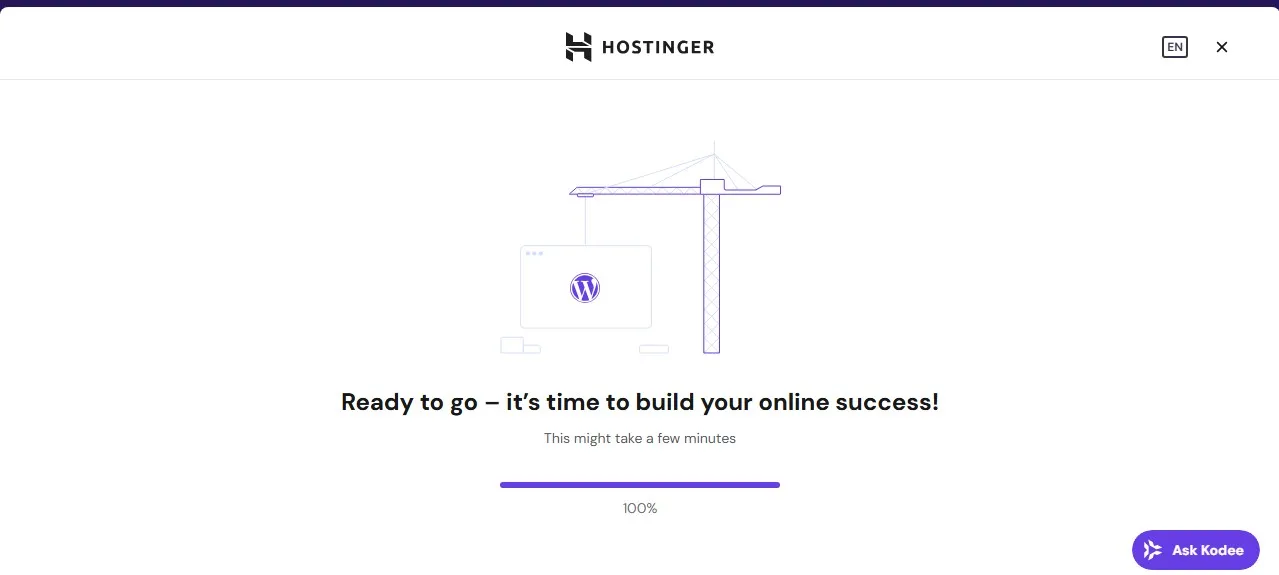
Once you click the next button WordPress will begin installing. After the installation is complete will be directed to the next step. Congratulation you have successfully installed WordPress (WordPress.org) on your web server.
Step 4: Choose how to build your WordPress website
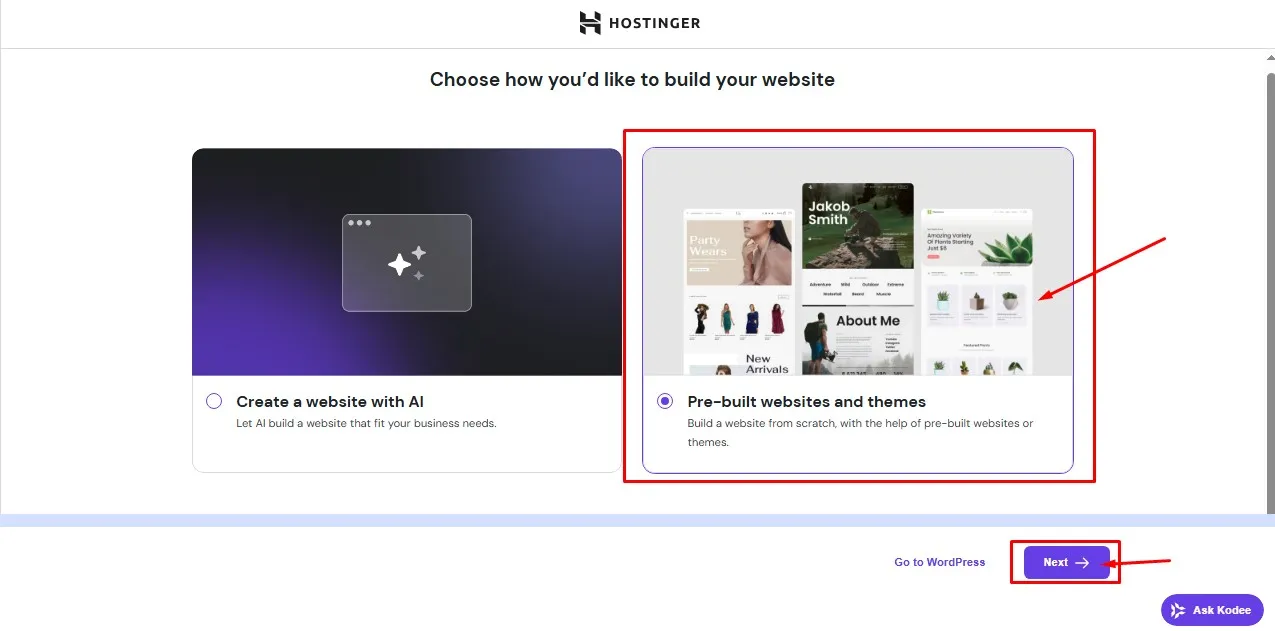
Once you arrive at this page you can choose your website to be created with AI or with pre-built websites and themes.
A WordPress theme is a pre-built website, you can install on your WordPress website. It helps you to quickly build a website without stressing much on it. There are free and paid WordPress themes versions.
You can get free version directly from your WordPress dashboard. The paid version, you can get it from themeforest.
Now select the pre-built websites and themes and click the next button below.
Step 5: Pick your WordPress theme
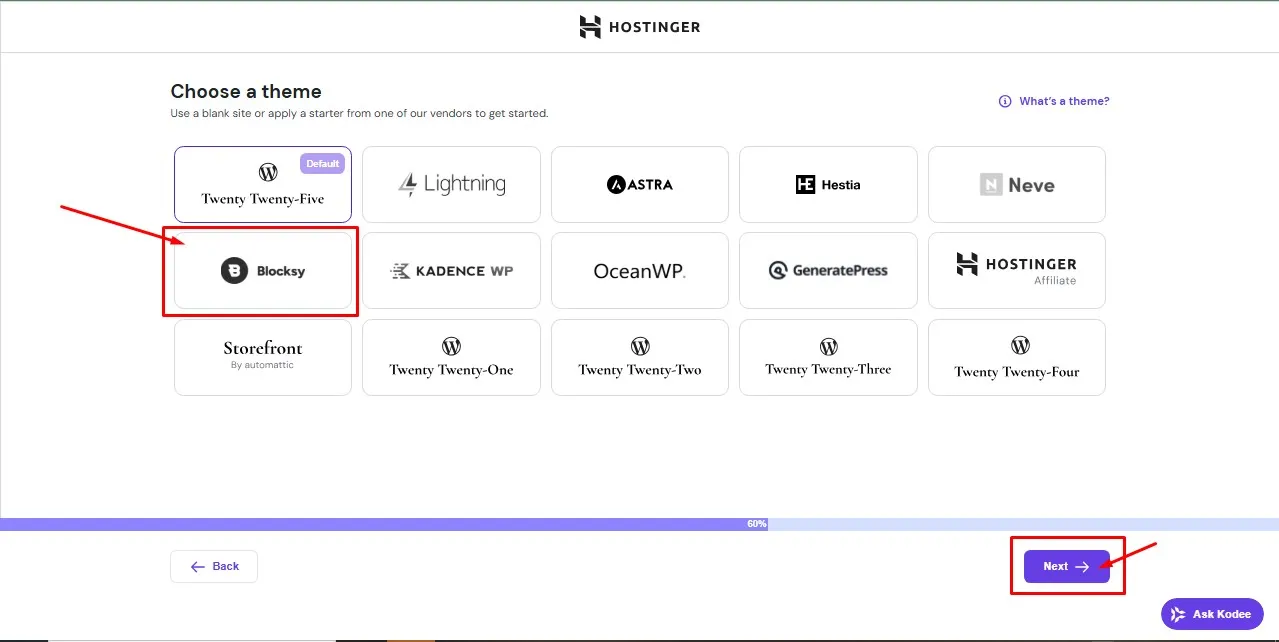
Now pick a WordPress theme you want to use in building your website. For the sake of this guide, pick the Blocksy theme. We can always still change it later on. After you have selected the Blocksy theme, click the next button.
Step 6: Pick a WordPress plugin to install
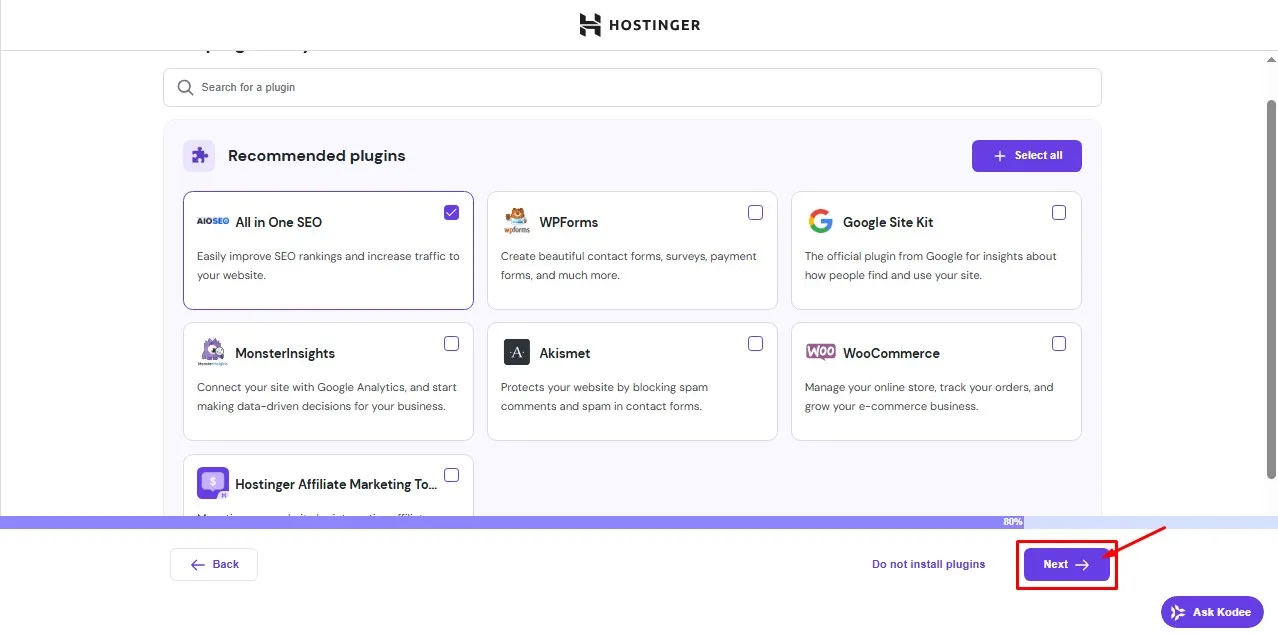
Just click the All in One SEO plugin. Click the next button
Step 7: Finalizing your WordPress Installation
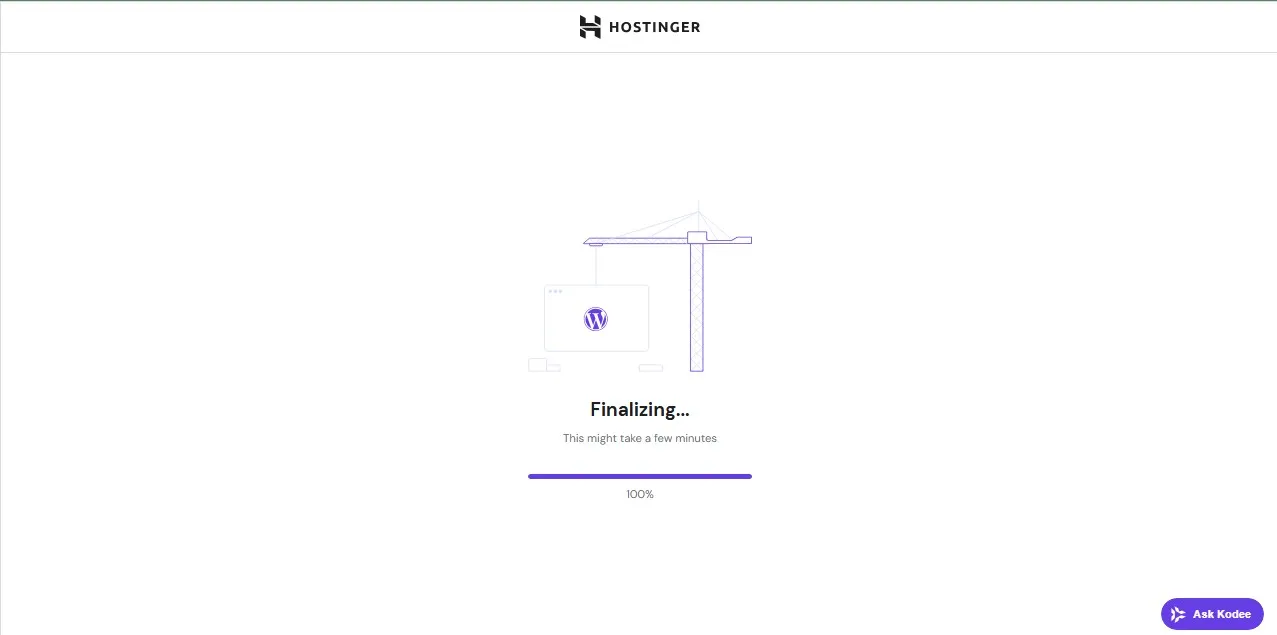
Hostinger will begin finalizing your WordPress installation. You don’t have to do anything.
Step 8: WordPress Dashboard Onboarding
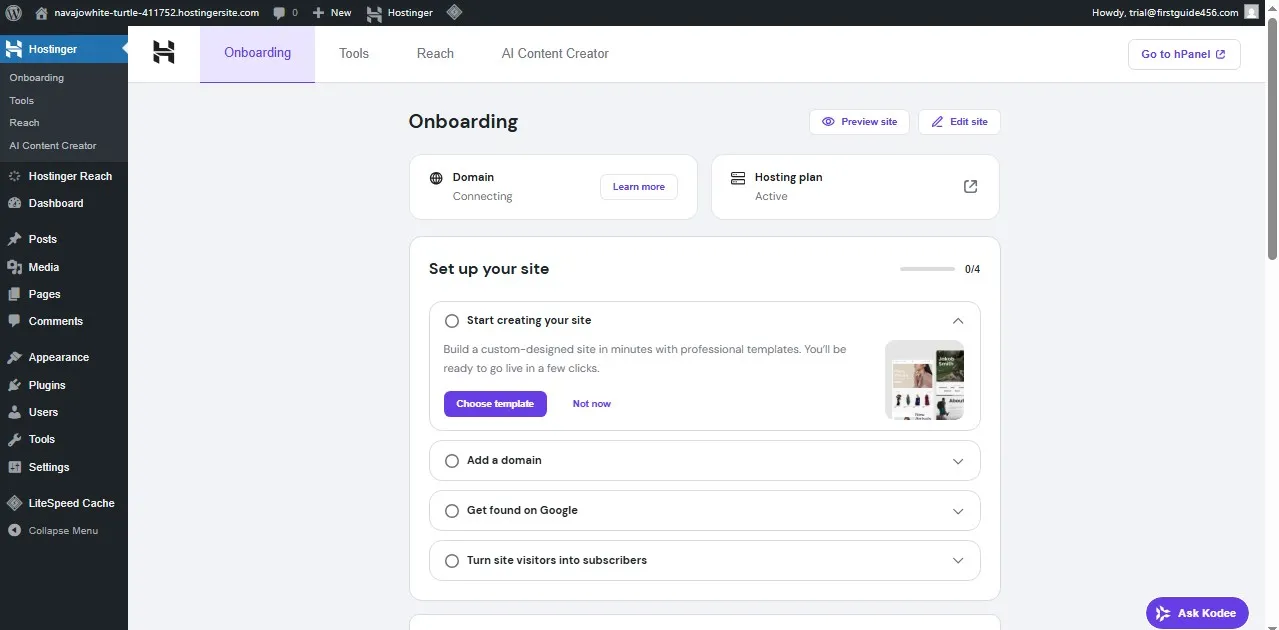
Congratulations 🎉🥳, you have successfully installed WordPress on your hostinger web server. It’s that easy.
There are different ways you can build a WordPress website. You can use pre-built themes to quickly build your website. The free version of such themes are available in your WordPress dashboard.
WordPress Dashboard Clean-up
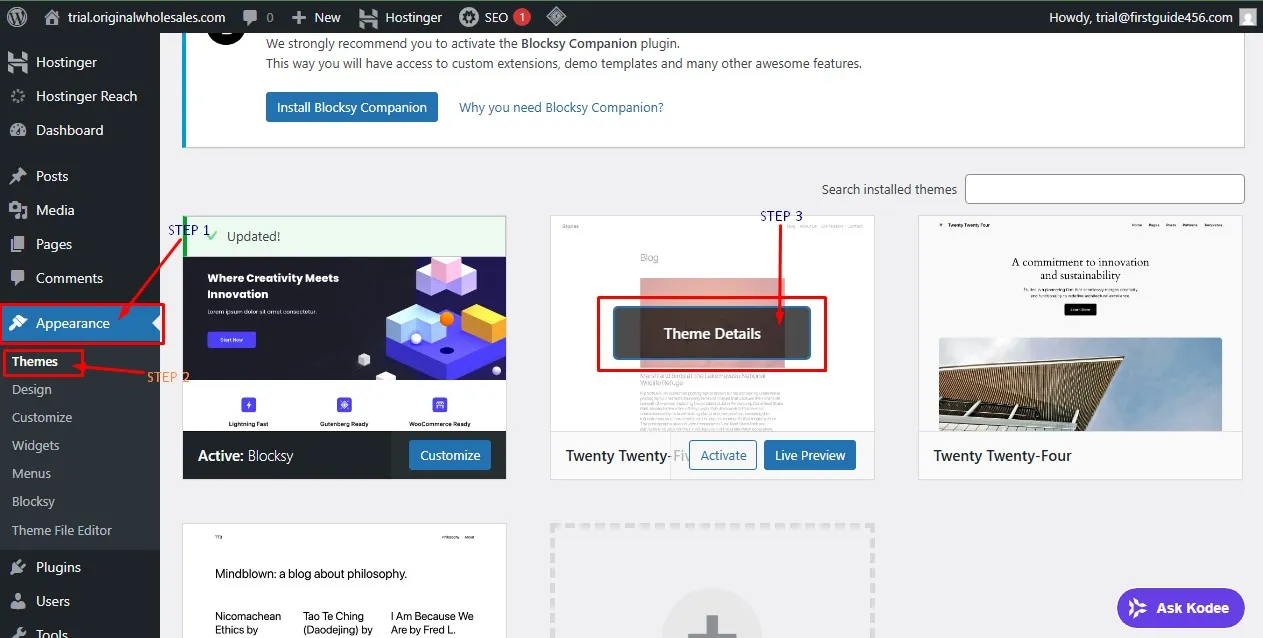
Look at your left hand side, go to “Appearance” inside the appearance you will see “Themes” click it. This is where all the installed and active themes on your WordPress are kept.
We are currently using the Blocksy theme, so we can’t delete it. But we can delete the others we don’t need. Click the center (Theme Details) of the other themes one after the other.
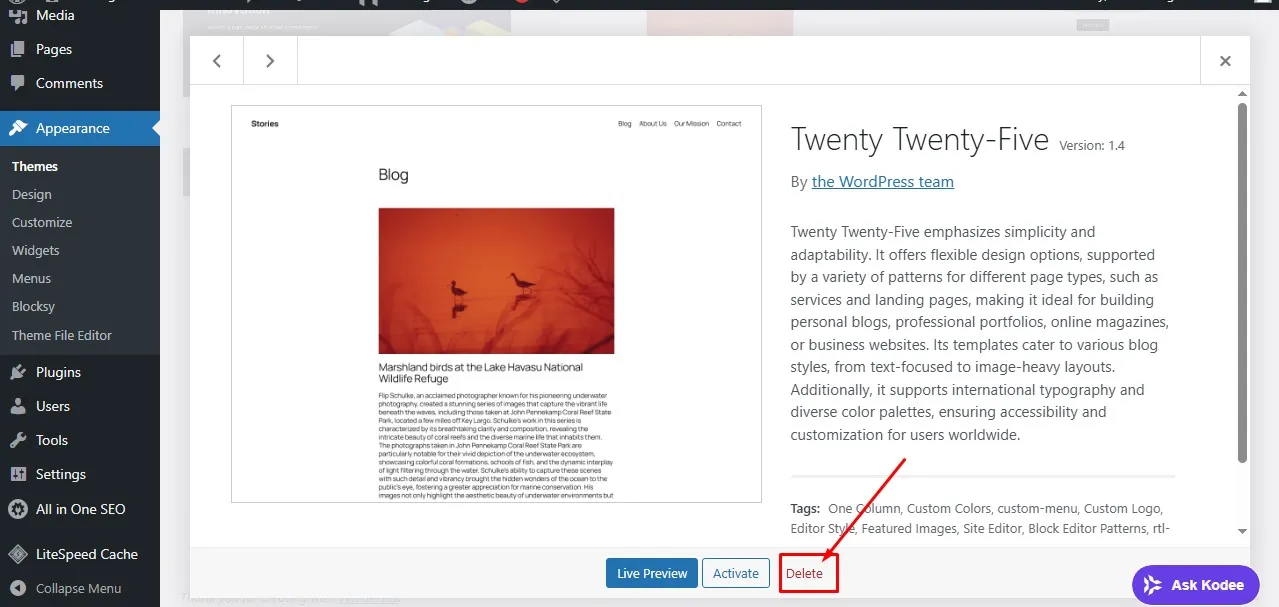
It will pop-up the theme and you will see a delete button. Click it and also click the ok that pop-up in your browser. Do it for the other two themes. Now we only have the blocksy theme, which we can’t delete because it’s the current active theme.
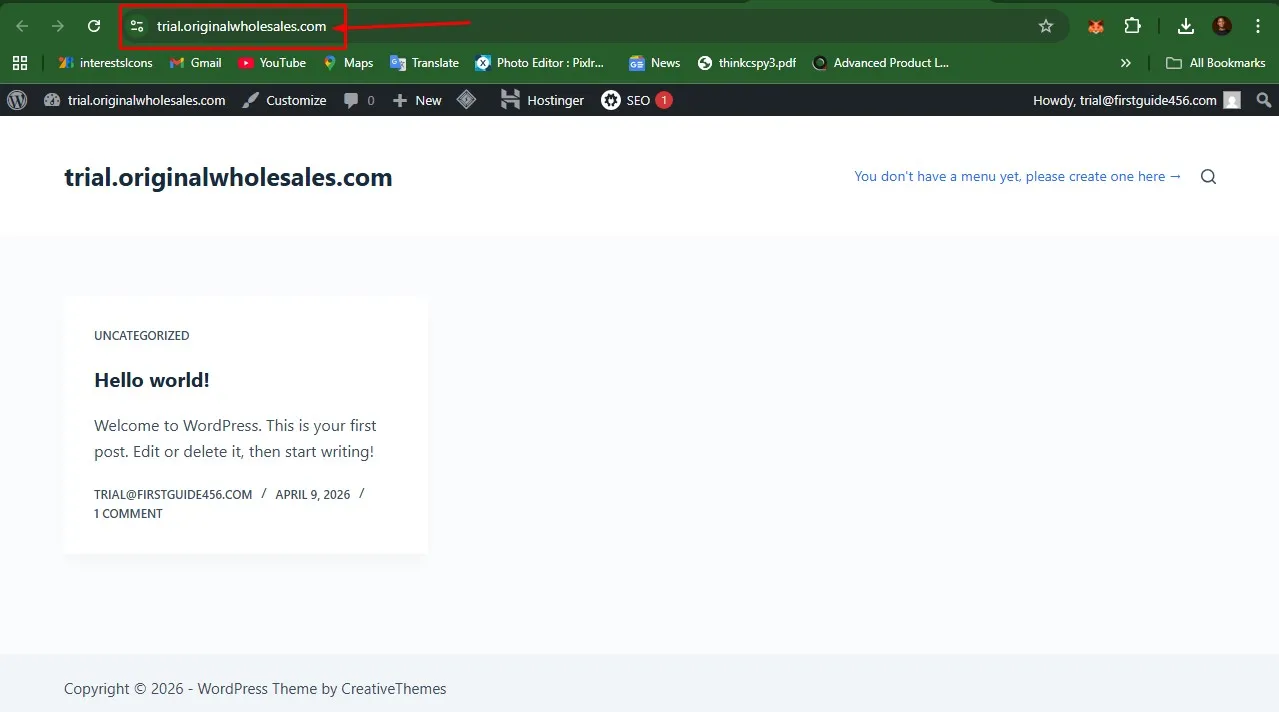
Open a new tab in your pc and type your website address to visit it. You will see that the website is totally empty right. It’s because we are using an empty WordPress theme. This is a type of theme you should use when building a website from scratch.
Now let’s go back to our WordPress dashboard. Let’s clean up our plugins section.
WordPress Plugin Clean-up
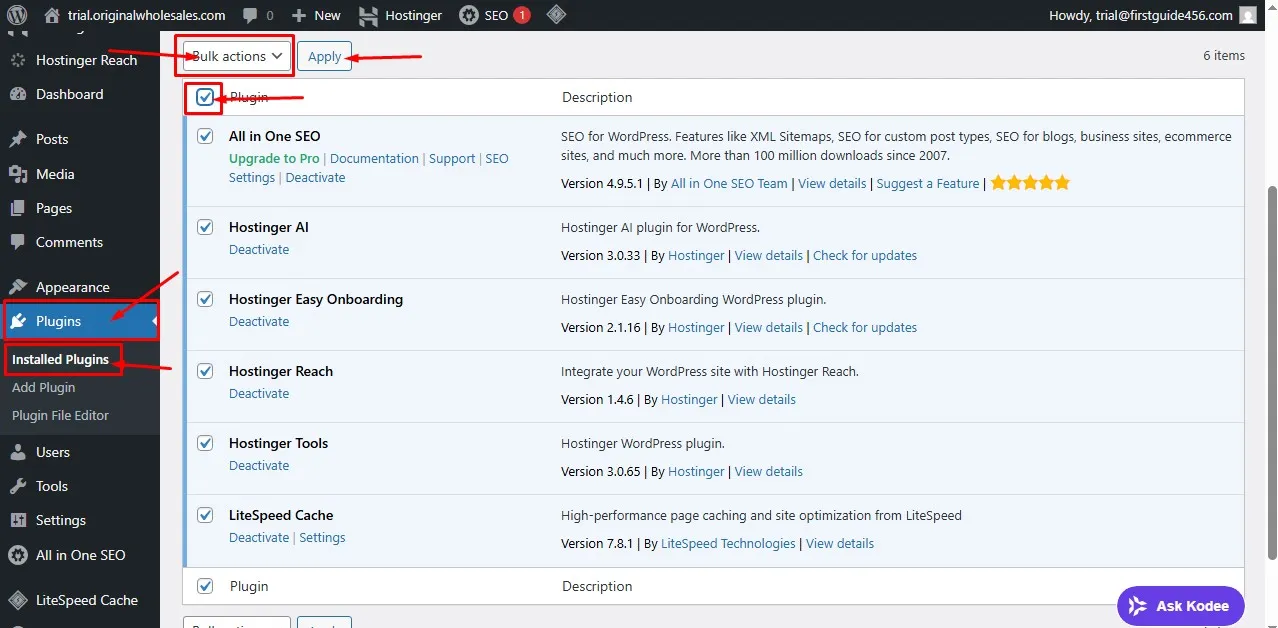
On the left hand side, click the plugins, then installed plugins. We are deleting all the plugins. We don’t need any of them. Click all the plugins and use the bulk actions. Select the deactivate first to disactivate all the plugins before you delete.
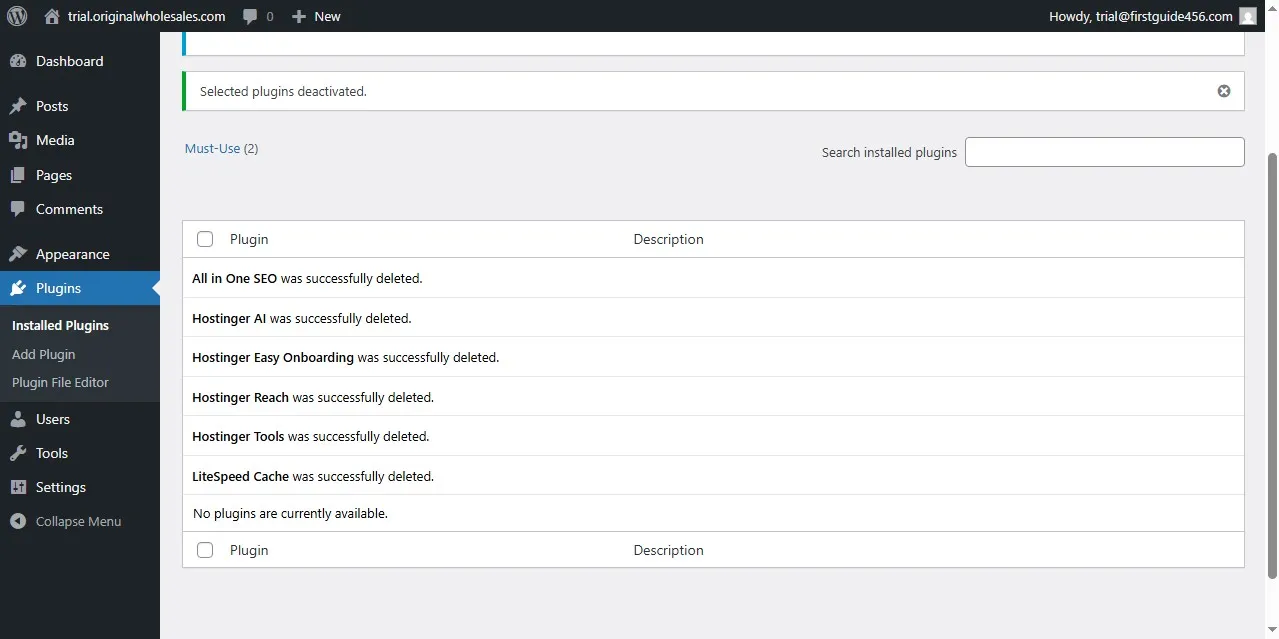 Now we are going to install the plugin(s), we need to start building website from scratch.
 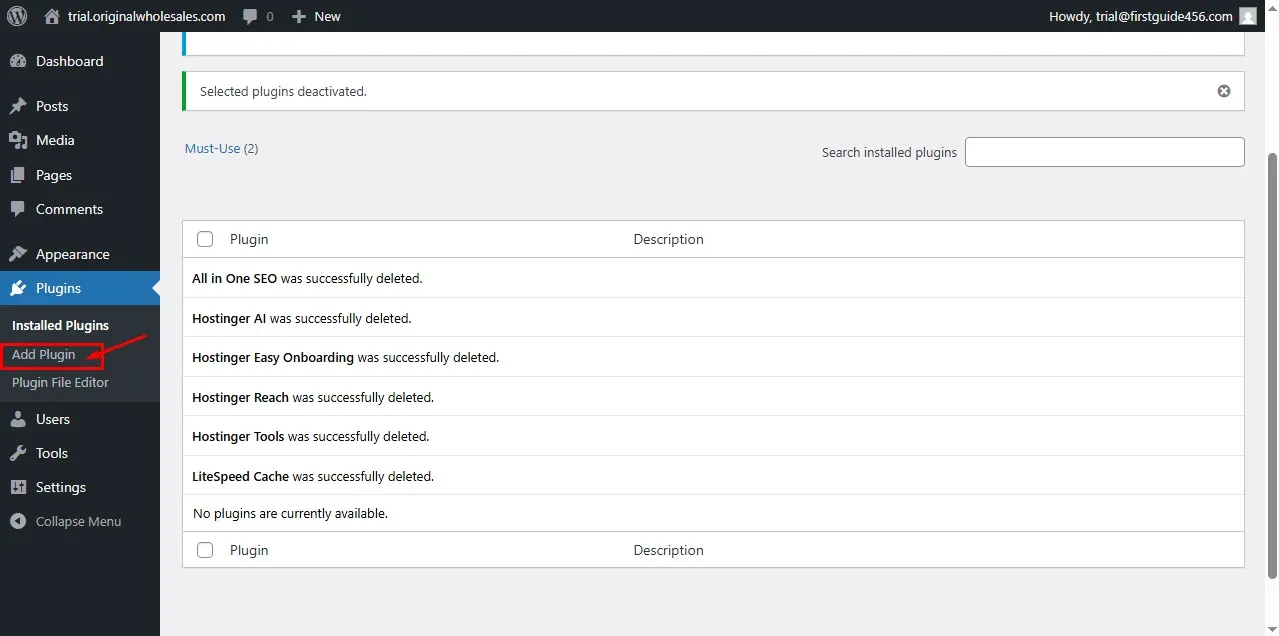 Click the “Add Plugin” under “Plugins” on the left hand side.
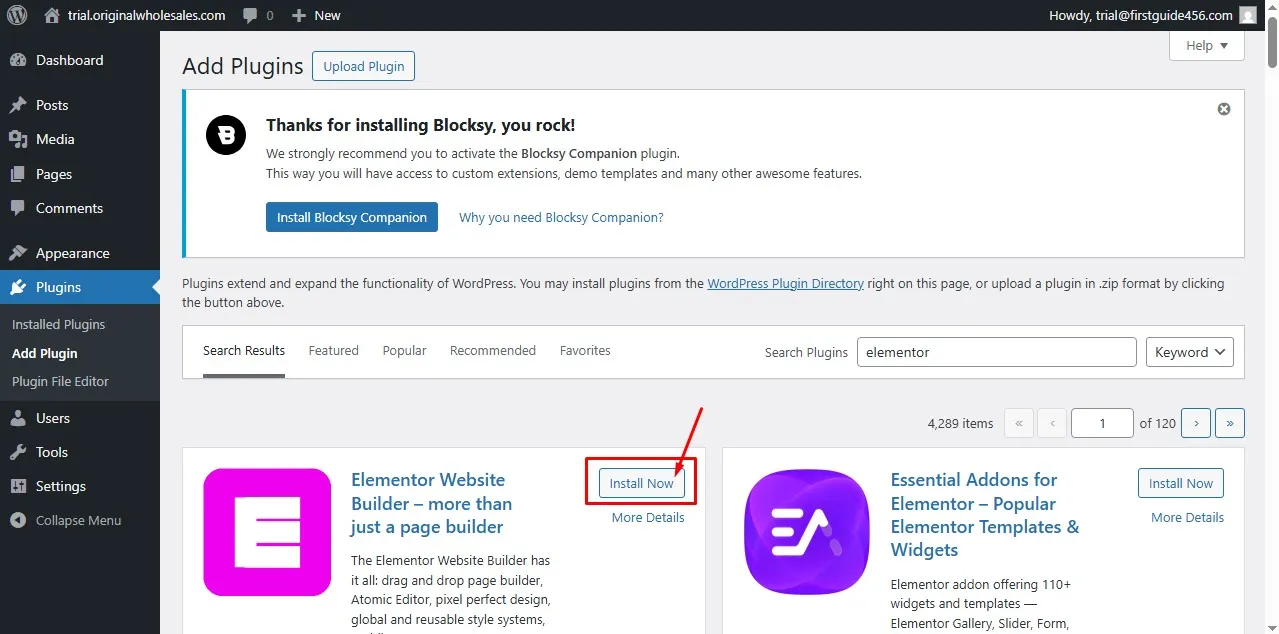 You will see the plugins directory. Search for “Elementor” plugin and install and activate the plugin. Elementor is a website/theme builder we are using to build our website from scratch. We also need the Elementor pro to be able to build a website from scratch.
Now head over to Elementor Website to get your Elementor pro
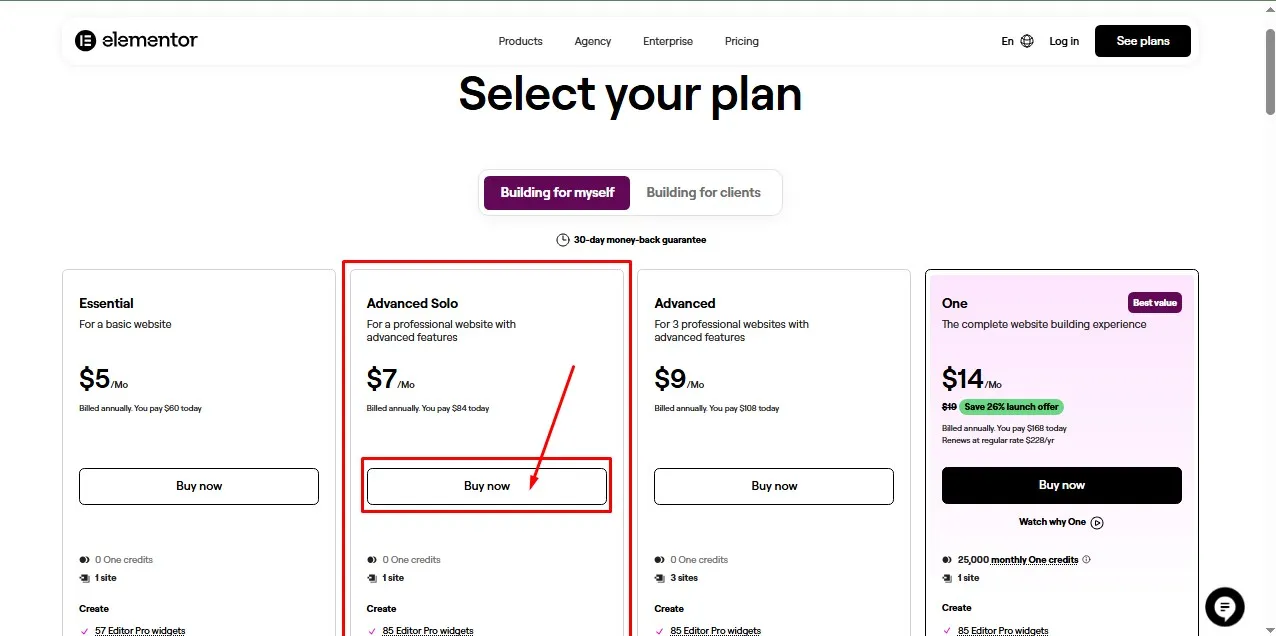
I will advise you purchase the Advanced Solo, so that you get everything you need to build your website without restriction.
Once you have downloaded the elementor pro zip file. Head back to your WordPress dashboard and go to “Add plugin“.
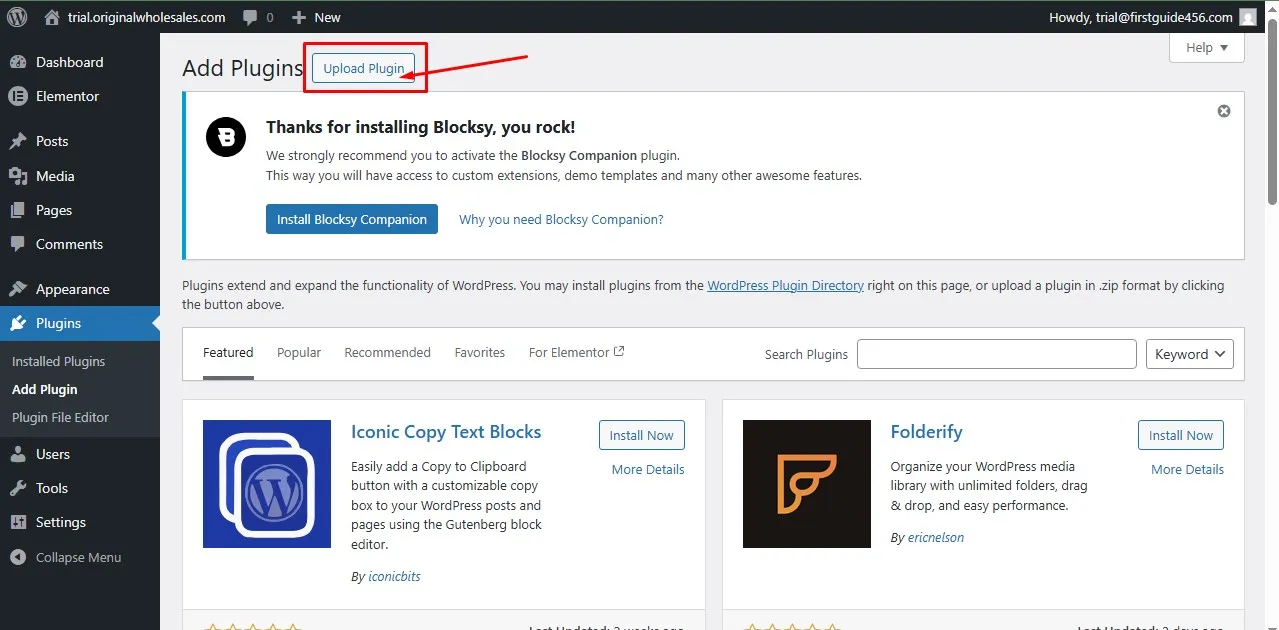 Then you click the upload plugin, to bring where to upload the elementor pro plugin.
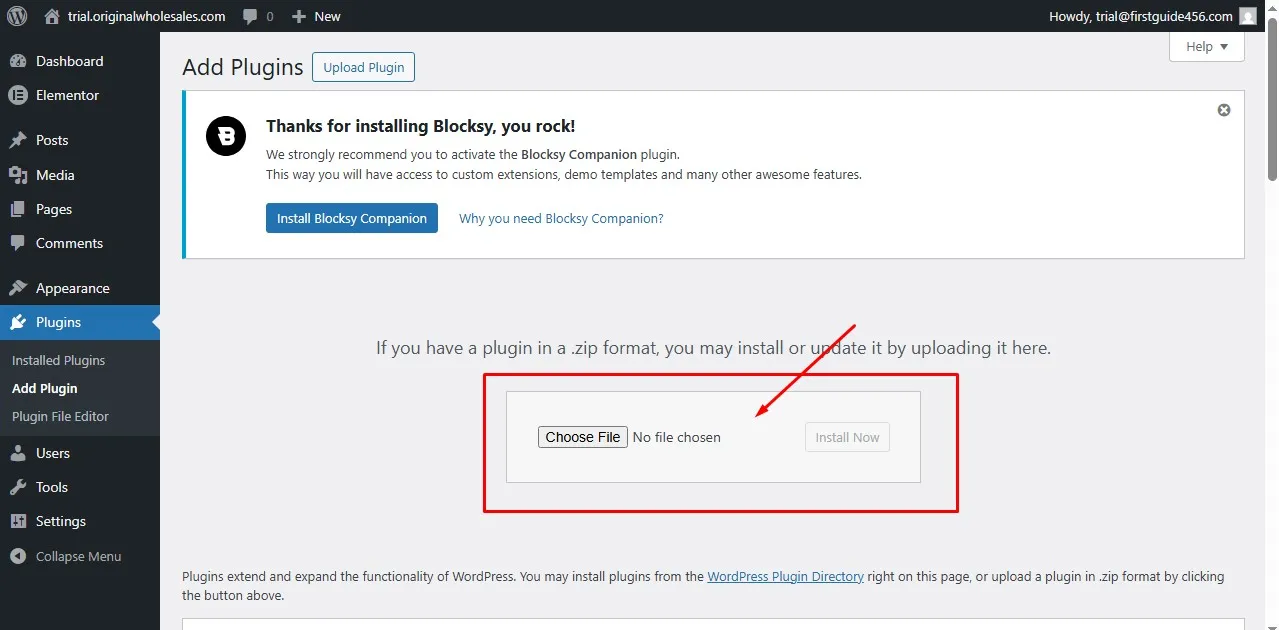 After uploading the zip you downloaded from your elementor account.
 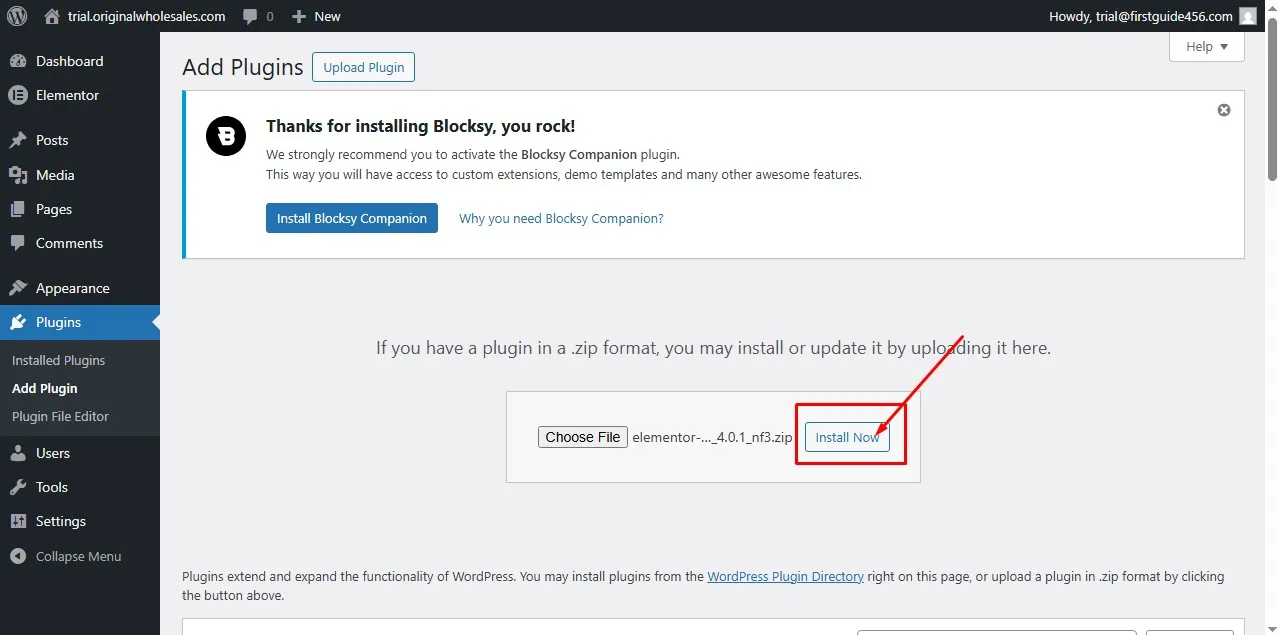 Click the install now button to install the plugin.
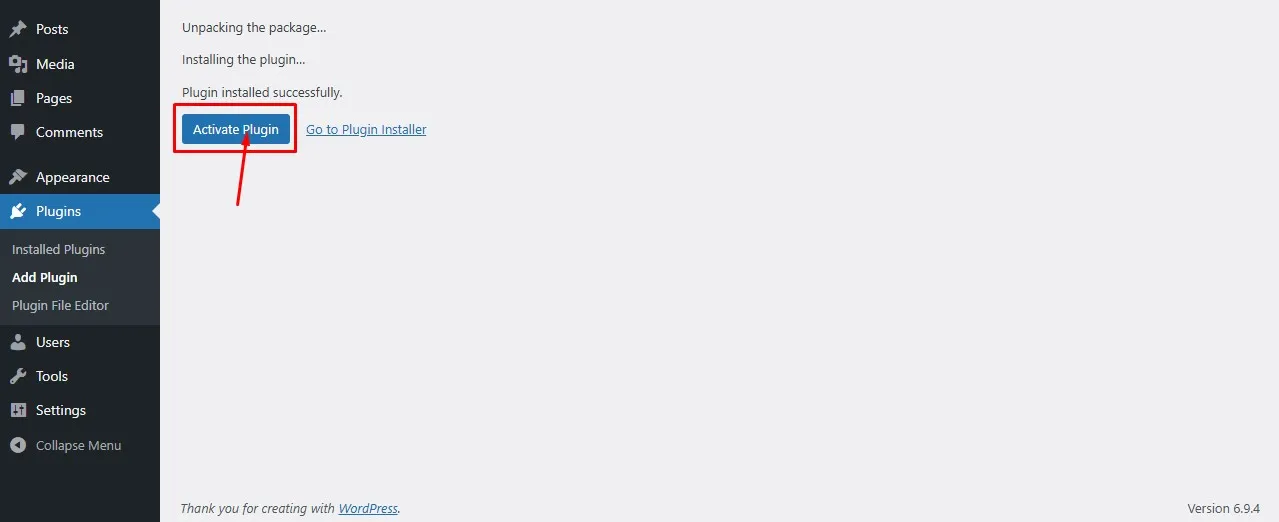 After clicking, it will take you to the plugin activate button click it to activate the plugin.
 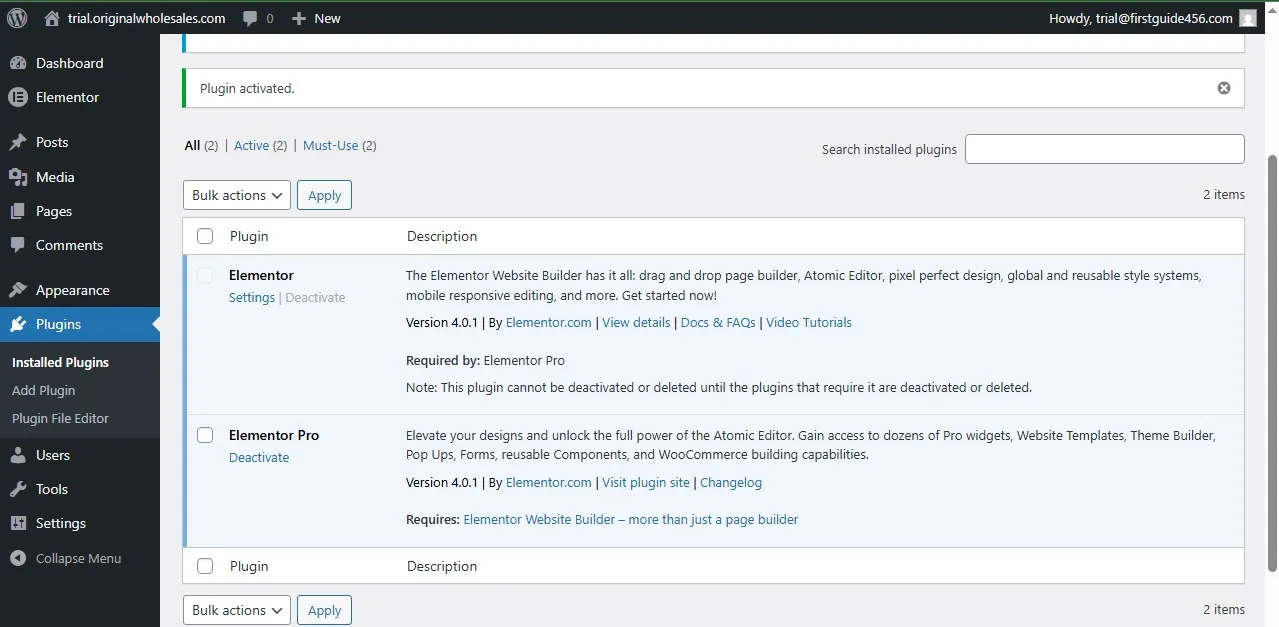 Congratulations you have successfully activated Elementor free and paid versions.
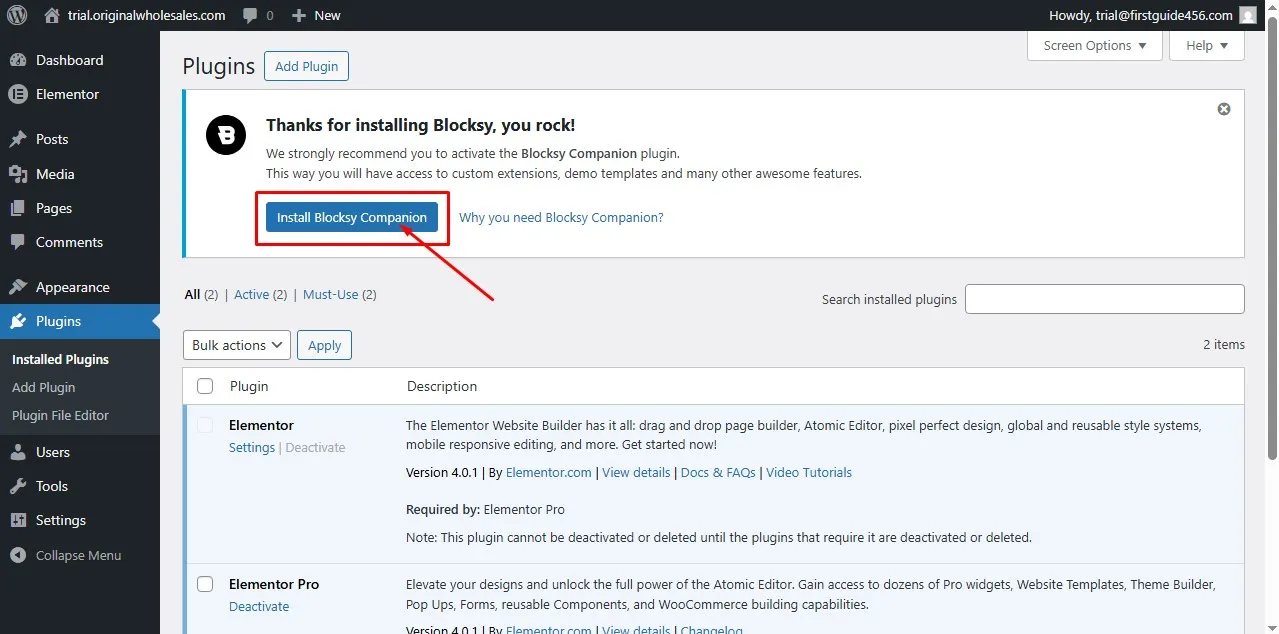
Now let’s activate Blocksy theme companion. After activating the plugin let’s begin building our website.