
The first time I tried to build an e-commerce store on WordPress, it was a disaster.
I went on to pick the wrong web hosting. Installed too many plugins. Even my checkout and cart page broke twice. And worst of all? I had zero sales after four months.
It was a very painful experience for me.
But here’s the thing I learned from all this. I literally learned a lot. And after years (of building few profitable stores later), I figured out what actually works and what’s just make noise.
So if you’re trying to build a WordPress e-commerce shop from scratch, I’ve got you covered. I’m going to walk you through the exact process I took step by step without any confusion.
By the end of this guide, you’ll have a fully functional online store. Not “almost ready.” Fully ready to sell your products.
Now let’s get into it.
Step 1: Get Your Domain Name and Hosting (Don’t Overthink This)
This is where most beginners start stalling.
Most beginners will start thinking:
- “What if I pick the wrong name?”
- “What if I need to change it later?”
Relax. Your domain name doesn’t need to be 100% perfect. It just needs to be clear and brandable.
My rule of picking your domain name:
- Keep it short
- Make it easy to spell
- Avoid hyphens and numbers (especially hyphens)
When I started one of my website niche stores (I won’t even mention the name right now, it was that bad). I spent 4 days choosing a domain name. Meanwhile, someone else has launched in 3 hours and started getting traffic before me.
That’s another lesson learnt.
Hosting (this matters more than you think)
Getting cheap hosting will cost you more than you think. Slow speed equals thousands or millions lost in sales.
There is a study I came across claimed that a 1-second delay in page load can reduce conversions by up to 7%. It sounds small to you until you realize that’s real money is disappearing from you.
Pick a reliable hosting provider with:
- Good uptime (99.9%)
- Fast servers
- One-click WordPress install
I recommend getting your domain and web hosting from Hostinger
Step 2: Install WordPress (Takes 5 Minutes)
Most hosting providers have a one-click install.
Just do this:
- Log into your hosting dashboard
- Find “Install WordPress”
- Click it
- Choose your domain, you want to install it on
- And you are done
That’s it, you don’t need any coding knowledge and no stress.
If this part scares you, trust me you’re overthinking it. I can assure that it’s easier than setting up a social media account.
If you don’t have the time to do it yourself. I can also help you set it up, just contact me through my contact channels.
Step 3: Install an E-commerce Plugin (This Is the Engine)
Now we turn your website into a store.
The best option for any WordPress website is WooCommerce. And it’s totally free and very powerful.
And to be honest with you. It’s what over 80% WordPress stores run on.
I also use it on my startup called originalwholesales.com
Why I personally use it:
- Full control over your store
- Tons of customization
- Works with almost any theme
I once tried skipping WooCommerce for a “simpler” plugin. That was a big mistake. The plugin couldn’t even handle shipping rules properly, and I lost a lot of customers because they couldn’t check out on my store.
I uninstalled it and never again tried it out.
How to install Woocommerce:
- Go to your WordPress dashboard
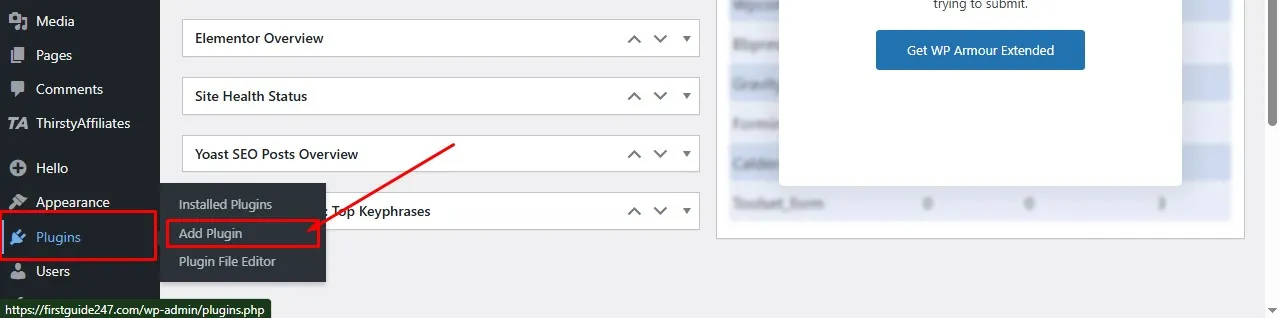
- Click Plugins and Add New
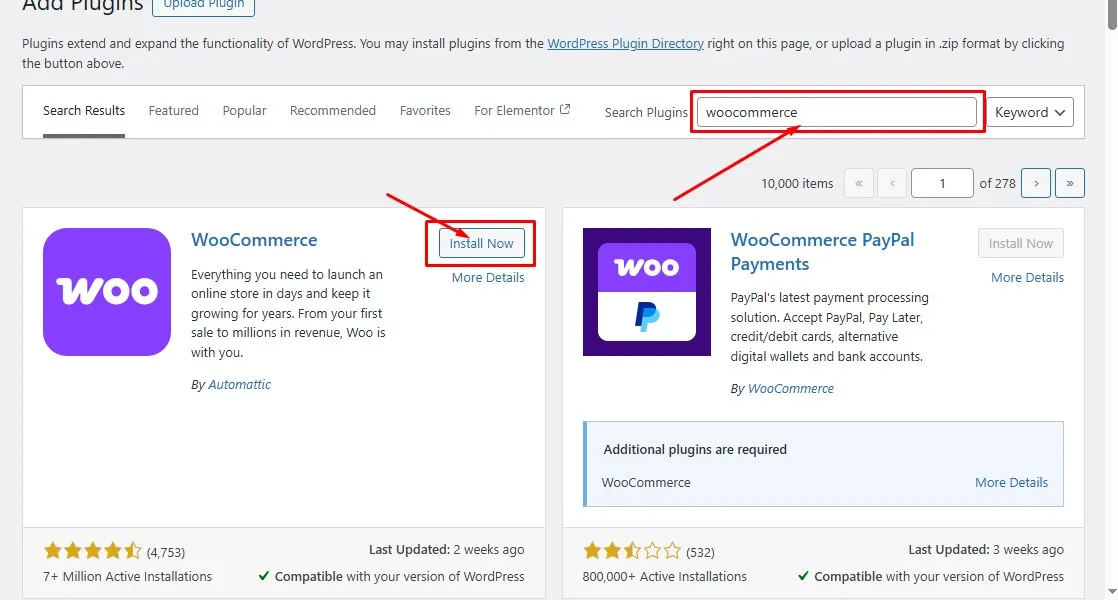
- Search “WooCommerce”
- Install and activate
It’ll launch a setup wizard. Just follow along it’s very straightforward and simple.
Step 4: Choose a Clean, Fast Theme (Don’t Go Too Fancy)
This is where some people mess it up.
You see a beautiful theme with animations, sliders, flashy cool effects and boom, you install it. You didn’t even check the responsive and page load speed of the website.
Then your website loads like a snail and you start complaining,
Here’s the truth:
A very simple, fast theme will always outperform a “fancy” slow one.
For example I created FirstGuide247.com. I used Elementor simple theme and design the website from scratch.
What to look for in a WordPress theme:
- Lightweight design
- Mobile-friendly
- Compatible with WooCommerce
When I switched one of my stores from a heavy theme to a lightweight one. My website load time dropped from 5.2 seconds to 1.8 seconds.
My sales also increased by about 18% the next month.
That’s no coincidence. I don’t think so.
Step 5: Add Your Products (This Is Where It Gets Real)
Now here comes the fun part.
Adding products very is simple. But doing it right is what separates a store that sells from one that doesn’t.
For each product, focus on:
1. Product Title
Make it very clear to understand. Do try to be very smart.
Bad example:
“Ultimate Comfort Experience”
Better example:
“Men’s Breathable Running Shoes Lightweight & Durable”
2. Product Description
Write your product description like you’re selling to a friend or a colleague.
Instead of writing:
“This product is made with high-quality materials”
You can say:
“I’ve tested a similar product before, and what stood out was how light it felt, even after wearing it for hours.”
3. Images
Don’t use blurry images. You should don’t ever to this.
If your images look very cheap, your customers will think your product looks very cheap.
It’s that simple. Don’t forget to convert your jpg or png images format to webp or avif formats. This helps reduces loads on your website server.
4. Pricing Strategy
Here’s something interesting:
I once priced a product at $9.99, just to make a sale. but at the end got no sales.
When I changed it to $14.99, sales started coming in.
Let me tell you something perception matters. Most people associate price with quality.
Step 6: Set Up Payments (Make It Easy to Pay You)
If people can’t pay you easily, they won’t bother to stress over it.
It;s as simple as that.
Popular Payment options:
- PayPal
- Card payments (via Stripe, Paystack, Flutterwave or similar)
At least enabling 2 payment methods is good.
I remember losing a sale because someone didn’t trust and have PayPal account and I didn’t have card payments enabled. That hurt me very much.
I don’t you to repeat that mistake.
Step 7: Configure Shipping (Don’t Complicate This)
Shipping can get messy if you overthink it to an extent.
Start with this simple guide.
My Options:
- Free shipping (best for conversions)
- Flat rate
- Calculated shipping e.g based on weight or number of products
Here’s a trick I want to show you:
Many successful stores bake shipping costs into product prices and offer “Free Shipping.”
Do you know why?
Because when you say you offer “Free Shipping” it converts better. That’s just it.
Step 8: Install Essential Plugins (But Don’t Go Crazy)
Plugins are great, until you install 30 of them and your website breaks.
Stick to the essentials you need like:
- SEO plugin (to get traffic)
- Security plugin
- Backup plugin
- Caching plugin (for speed)
That’s just it. Don’t use too much plugins you don’t need.
I once installed 27 plugins on my store. Guess what happened?
My customers starts complaining my website was crashing during checkout.
Step 9: Optimize Website for SEO (Traffic = Sales)
If you have no traffic, automatically you don’t get any sales.
You don’t need to be an SEO expert, but you just need the basics.
Just focus on:
- Keywords in product titles
- Proper product descriptions
- Fast website loading speed
- Mobile optimization
Let me give you a real scenario:
A friend of mine listed a product with the title:
“Cool Bag”
It got no traffic.
He later changed it to:
“Waterproof Travel Backpack for Hiking & Camping”
Traffic increased within weeks of reposting.
Specificity always wins.
Step 10: Test Everything (Seriously, Everything)
Before you launch your store, test like your business depends on it heavily, because it does.
Test out these:
- Add to cart
- Checkout process
- Payment methods
- Mobile responsiveness
Go through the entire store buying process yourself.
I once launched a store without testing properly and the checkout button didn’t work on mobile.
I lost potential sales for 2 days straight before I noticed it.
Don’t be me, okay.
Step 11: Launch Then Improve Later On
Here’s the truth nobody will tell you:
Your store won’t be perfect at launch, that’s totally okay.
Just launch anyway, as long as the website fulfill the primary objective.
Then you can:
- Improve based on feedback
- Track what’s working
- Fix what’s not working
Perfection kills progress. Speed always wins.
Real Talk: Why Most WordPress Stores Fail
Let me say this bluntly with sugar-coating anything from you.
Most people fail not because WordPress is hard, but because they:
- Overthink everything
- Delay launching
- Ignore marketing
- Give up too early
I have been there. In short I have been there more than once.
One of my early stores made zero sales in the first 90 days. I almost quit at that time.
Then one product started getting traction.
Then another joined and I started getting consistent sales.
Sometimes you might have done everything right. But it’s just a matter of sticking around long enough.
Conclusion: Creating Your Store Isn’t the Goal, Many Sales Is The Goal
Building a WordPress e-commerce shop is just step one.
The real game is getting traffic, making sales and Improving.
If you follow the steps I’ve shared here, you’ll already be ahead of 80% of beginners who are still stuck “planning.”
Now it’s your turn to get started.
Related Posts You Should Read
If you’re serious about growing your store, check these out on this blog:
- How to Build a WordPress Blog from Scratch
- Best SEO Plugins for WordPress
- Best Side Hustles to Start This Year
- Best Grammar Checkers
If you have got questions about setup, plugins, mistakes, anything to setting up your online store. Drop a comment below.
I read them and reply them as soon as I can. And I’ll be happy to help you out.